Image Map
Showing posts with label classroom management. Show all posts

Friday, August 2, 2013

Tune Into Technology: QR Codes!

Update: I found this PowerPoint presentation on one of my favorite websites that explains QR codes very well and has some examples of how they incorporate them into classroom/schools. I wanted to share it with all you! QR Codes in the Classroom

I am so sad to see this linky party come to an end. I have really enjoyed writing for it and have enjoyed reading everyone's ideas! Thank you so much to Kristin from iTeach 1:1 and Amanda and Aylin at Learning to the Core for hosting this wonderful linky party!


I have already written two posts about using QR codes before. One was written on Self-Checking Assessments and the other was ideas that I want to use for Classroom Management this year. I can't wait to implement them.

My favorite QR generators are QRstuff and Microsoft Tag. I use QRstuff on a more regular basis, but the nice thing about Tag is that you can change the code without having to print a new QR. This would be helpful if you had a laminated sign for links to visit that you would hang at the door or front of class, and you could change the links whenever you needed to. My favorite QR reader app is Scan available on both Apple and Android devices.

But Melissa, I don't have any smart devices in my classroom! No devices? No problem! One myth that I want to dissolve is....you DON'T have to have a Smart phone or device to use!!! You can use QR codes with a web cam and the internet. Download one of these programs to use right on your computer, Google Chrome Add-On or QuickMark. With the Google Chrome Add-On if the code is on the computer (webpage, blog, word doc, etc), you don't need a webcame! Simply right click the image and select Read QR code from Image.

Since I teach middle school, I do not have centers for my students. For activities, I use them more in a scavenger hunt way. I have done them where they have the problem and have to scan to check the answer and where they had the answer (from a previous problem) and had to scan for the next problem. Scanning to check the answer is MUCH easier for them and you! Some of my codes got in an infinite loop and caused some issues. Here is an example of the assignment and the codes. I cut the codes out and put them on colored index cards so they stick out on the walls and whiteboard. Somehow, I never got a picture of them doing these! (probably because I lent out my iPhone and iPad for them to use lol) I did use a worksheet style so that they could put them in their INB. Even with it being a worksheet, they love these and ask when we are going to do them again! If I can get middle schoolers to actually want to do math, I have succeeded. :-) 


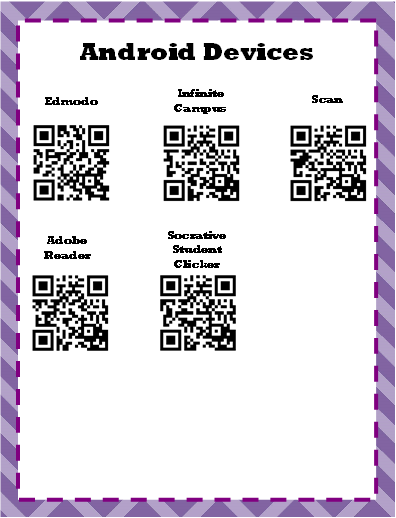
When I have an app I want the kids to download...I print QR codes. Sometimes I will leave one code at the front of the room (one each for Apple and Android), or I will make slips to give to the kids so they can download at home. No more wrong apps, broken links, "I can't find it", etc! I have these posters hanging in the classroom of apps that we commonly use. 


This year I am trying out new ways to use QR codes and will definitely be sharing them with ya'll!! And I promise I will be taking more pictures of my students using and implementing them in the classroom! 

Do you have any different ideas or ways you use QR codes in your classroom? Two more days left of summer for me, yet I am about to head up to school. The life of a teacher!

Sunday, July 28, 2013

Tune into Technology: Technology Management and Organization

So this was the first week I have "unofficially" been back at school. I helped out in the office a bit, worked on my classroom, and have been trying to get organized. But I am quickly seeing what my blogging will be like come August. I apologize for being late with this linky party, but am thankful they leave it open for a week. This week is dedicated to management and organization. I do not deal much with the organization part since I do not have any devices in my classroom, everything is BYOD. But I have been learning more about the management part.


Set HIGH expectations

I have high expectations for behavior in my classroom regardless, and reinforce them often. I use devices more than other teachers on my team and they love using them. They know from the beginning that this is a privilege and they can just as easily lose this. If you are on another app, texting, facebook, anything your device will be taken up, turned into the office for seven days (board policy) and you will not be allowed to use a device on our next activity. I only had a few problems the whole year. Taking away a phone from a teenager? You might as well be cutting off a limb, and they don't like to risk it. :-)

1, 2, 3 Eyes on Me

Now that is not the attention grabber I use for middle school, but have you ever tried to get and maintain their attention when they have technology in their hands?! This one I actually picked up from my mom! She is a substitute teacher primarily for high school and will let the students listen to music while they are working. She tells they must stay on one play list, turn the device upside down, and she should not be able to hear the volume. Now, I only let them listen to music for rewards, but I have them turn them upside down when waiting for instructions, beginning the activity, etc. This way I have their attention! 

Downloads

If there is an app to download, they must have it downloaded before they come to class, or they will not be able to use the device. This is just a time management thing. Our Wi-Fi is spotty at times, a lot of students don't know their iTunes passwords, or parents do not let them download without permission. I let them know well in advanced what app they need, and what devices it will work on. I will also give them something to help them download the correct app, but you'll have to wait and see for next Thursday on QR codes for that one! ;-)

I also keep this poster up in my classroom at all times. It lets them and parents know what kinds of apps we use regularly, or ones that I suggest for math help. Great for Back to School night!


iPad Cart Checkout

We have a checkout sheet we have to use for each class period whenever we have the iPad cart. My kids have a number for their calculator card that they use, and I assign iPads based on this number as well. I have my Teacher Helper stand at the cart to hand them out, while I take care of the list. Their names have already been written on the list, but we have to sign for each one. 

What device can I use?

Not all apps are available on all markets. Typically, the Apple market has more educational apps. If you are doing a Bring Your Own Device activity, I would suggest this FREE poster I made to let students know which devices they can use.


What are some of the things you use for classroom management or organization?
Make sure to Tune Back Into Technology for QR Codes!

Thursday, July 11, 2013

Tune into Technology: iPads!! with a FREEBIE!


It's Thursday, and I am linking up (on time hehe) with Learning to the Core for their Thursday linky party, Tune into Technology. This week it's iPads. When parents ask me iPad or *insert brand here* tablet, I always say iPad. As far as apps are concerned, the Blackberry/Google Play market has more, but when it comes to Educational apps Apple takes the prize. I often times can't find an app that I have for Apple on the other markets and the kids get disappointed. I know they are $$$$ but it's worth it. I bought mine during Tax Free Weekend in TN and it was refurbished so I saved money, and it works just like it was brand new!

I have to rely on my students bringing in devices, check out the iPad cart, or use my personal devices in the classroom. If I give the students warning, I will usually have enough devices for partners and definitely one per group, but they aren't guaranteed to have an Apple product. The iPad cart is great, but you have to reserve it weeks in advanced and request any apps that you want on it as well. It just takes a lot of planning. I would die to have a few that would just stay in my classroom. So since I don't have as many activities, centers, etc. to share I figured I would share my top MUST HAVE apps that I couldn't live without!

Teacher Apps

1. Dropbox/Google Drive/Sky Drive - cloud and file sharing programs  

I use Dropbox for school and Google Drive for blogging. The firewalls at our school allow Dropbox, but none of the Google services (otherwise I would only use Google Drive!) I lose USB drives, I want to work on stuff from home, and I will pull up documents when working with my PLC partner. This makes it so easy to have everything at the tip of your fingers. I don't even save anything to "My Documents" or my hardrive  anymore!

2. Evernote

I have folders for all of my meeting notes, and for my RTI classes where I have to do jot downs. You can embed pictures in it as well. This also works on a cloud network and you can download to your desktop or online.

3. Splashtop/Doceri

These are a remote desktop. I used to use Doceri because it has in a built in whiteboard, but I have found Splashtop easier to use. You do have to be on the same network as your computer. Makes it easy to be away from my computer but pull up something from the Internet or our workbook. It has also come in handy during some boring, three hour long faculty meetings where I can work on documents that are on my computer from my iPad in another part of the buidling or if your gradebook is Java/Flash based.

4. Too Noisy 

The kids love this app! I will let them work in partners, but 7th graders tend to get noisy and off topic so this help keeps them in check. If it gets in the yellow three times they have to work independent. I use yellow, because it's really far away from them because I have to use a cable to attach it to my projector. So if it's that loud, it's too loud. I did have to start warning them that if they set it off on purpose that person would be working independent. Some do find it distracting, so I have them sit underneath the projector screen or in the back of the room.

5. Show Me/Educreations

Record your voice and movements on an in-app whiteboard at the same time. See my post HERE for a detailed comparison of the two apps.

Student Apps

1. Cover Up Math

This app is an introduction to Pre-Algebra/Algebra and has the students solve the problems intuitively. The students were doing complex two step equations on the same day I did a pre-test! This led us into some conversations about their mathematical thinking and being able to talk themselves through the problems.

2. Socrative - Student and Teacher Apps

This works in conjunction with socrative.com where you can create EXIT slips and quizzes. The quizzes can be run as a "Space Race", teacher paced, or student paced. I let them work in teams to solve. I have the online version pulled up on the projetor while we are working on the iPads as well. They really like the Space Race, and don't realize it's really a quiz!

3. BrainPop

Access all the videos from online on the iPad. You can use it as a center! Does require BrainPop membership.

4. Scan

We use this app for our QR activities. More to come with the QR code linky party!

5. MathChamp - Student and Teacher App

Now, I have not used this in the classroom yet. I ONLY ever write about apps that have been classroom tested and I approve of. But I hope to use this next year. It looks very similar to Socrative, but maybe geared more towards the elementary student and they can pick their own monster. 

One non-educational app I would suggest to everyone is Apps Gone Free. They offer a list of usually 8-10 apps a day that are free for a limited time. There are usually some pretty good apps in there you might not normally see that are usually 2-5 dollars!

FLASH FREEBIE!! :-)

I have created an Apps to Download poster to use in my classroom. It helps with classroom management and is great for parents to see what you are using in the classroom that they could use at home. I would like to get some reviews and feedback for it, so I am offering it FREE until SATURDAY over at my TPT store. This product is normally $5.00, so it's a great deal! It has a poster and over 50 icons of apps that are common in the classroom. All I ask is that you leave me some feedback! :-)


What are some other ways you use iPads in your classroom? I'm really interested how some upper gradees teachers use them!

Melissa

Monday, July 8, 2013

Helping Students Organize and Technology

Technology can be so helpful in the classroom, but sometimes teachers are afraid to use it because it can sometimes take a lot of classroom management! I wanted to show you ways that I have helped my students and my classroom get organized when it comes to using technology. I teach 7th graders so some of these ideas are addressed for middle schoolers, but they can be easily adaptable to other grade levels as well!

Password Keeper

At the beginning of the year, my students create an Edmodo account for my classroom website, Manga High for math review, and we added a few more over the course of the year. After a couple of weeks, I was constantly being asked "what's my password?!" With both of these websites, I can not see the password, but I can reset it. It was so overwhelming and it wasn't benefiting the students. We use an Interactive Notebook (INB) for our classroom notes, so I created a Password Keeper for students to keep in their INB. This cut down the questions to NONE, and if they did ask I would remind them to go look in their INB. It was a lifesaver!I did not implement it in until October, but this year it will go in when we are initially creating them, and we will have a day in the lab where we set up these accounts and familiarize with the websites.

If you don't have a notebook where they could paste this in or you would rather keep them all, you could keep these on a ring, binder, or index card holder and keep them near your classroom computer. Below is the one I use with some of the websites/logins they will use and extra blank spaces for them to be able to add them later.

iPad Apps to Download Poster

This was one of my first creations, and I just recently updated it! My students AND parents asked what apps we used or I recommended, so I created this poster to hang in my classroom. It has over 50 icons of recommended apps for teachers and students, and the iPad has 20 places for the apps. I chose the corkboard background so that I could easily use a push pin to attach them to the bulletin board. This would be a great poster to hang in the classroom for Back to School night or an Open House! Here is a picture one of my students took of it in the classroom to post on my Edmodo sight and also one of the actual poster.


iPad Apps to Download

Bring Your Own Device (B.Y.O.D) Poster **FREEBIE**

I love doing app or internet based activities in the classroom! When I can't check out the iPad lab or its just a quick activity, I let the kids bring in their own device. This is extremely helpful when it is an app based activity. Unfortunately, not all apps are available on all of the app markets. I made a poster that hangs in my classroom and I will check off which phones or devices students can bring in, Apple, Android, Blackberry, or Regular Cellphone. This helps answer so many questions!


Bring Your Own Device - TPT


Hope these products help you organize and manage the use of technology in your classroom! What are some things that help you organize and manage technology in your classroom?

Melissa

Wednesday, June 19, 2013

FREE Product!- Bring Your Own Device

Classroom Freebies Manic Monday


I am excited to be participating in 

my first Linky Party with 
The Organized Classroom's 
Manic Monday Post!


When we are doing an app based or Internet activity, I allow students to bring in their own devices to use in class. But more specifically when doing app based activities, I have come to realize that not all apps are available on the different app markets. While the Blackberry/Android market seems to have the most apps, the Apple market seems to have the most educational apps. Some of them you can find on both markets, but a lot of the ones I have used are only on the Apple market.

Instead of answering 100 times (or more) which devices will work for an app based activity, I decided to create a poster to hopefully cut down on this. I will laminate and attach a magnet to it and put it on the white board where I display my homework for the night for a visual reminder for students. I will then use it to check off which devices will work.

Enjoy! 


Related Posts Plugin for WordPress, Blogger...